


Goal Management
Move and Copy Objectives, Key Results, and Initiatives Between Time Periods
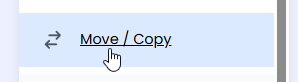
The Move & Copy feature allows Admin users to transfer objectives, key results, and initiatives from one year to another. There are two options: Quick Copy to copy all items from one year into another, or Manual Move/Copy to move specific objectives, key results, or initiatives. Copying keeps the original plan intact, while moving removes the selected items from the original year and may affect related progress data. For most cases, copying is recommended unless users are certain they want the items and history removed from the original year.
What's new?
Easily move or copy objectives, key results, and initiatives between time periods instead of re-entering them each quarter or year.
Why it's important
Instead of re-entering everything, you can just carry your items forward.
How to use it
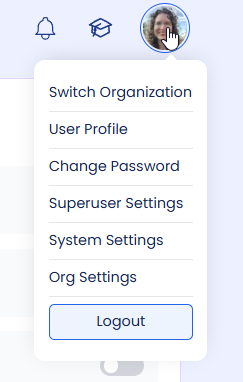
To access this, click on your profile picture (or initials) in the top right hand corner, choose Org Settings from the dropdown menu. You're StratSimple login needs the Admin Role assigned in order to do this.
Then on the left menu, you'll see move and copy near the bottom.
Click there and you’ll see the Move / Copy Deliverables page. At the top is the Quick Copy option, and at the bottom is the Manual Move /Copy option.
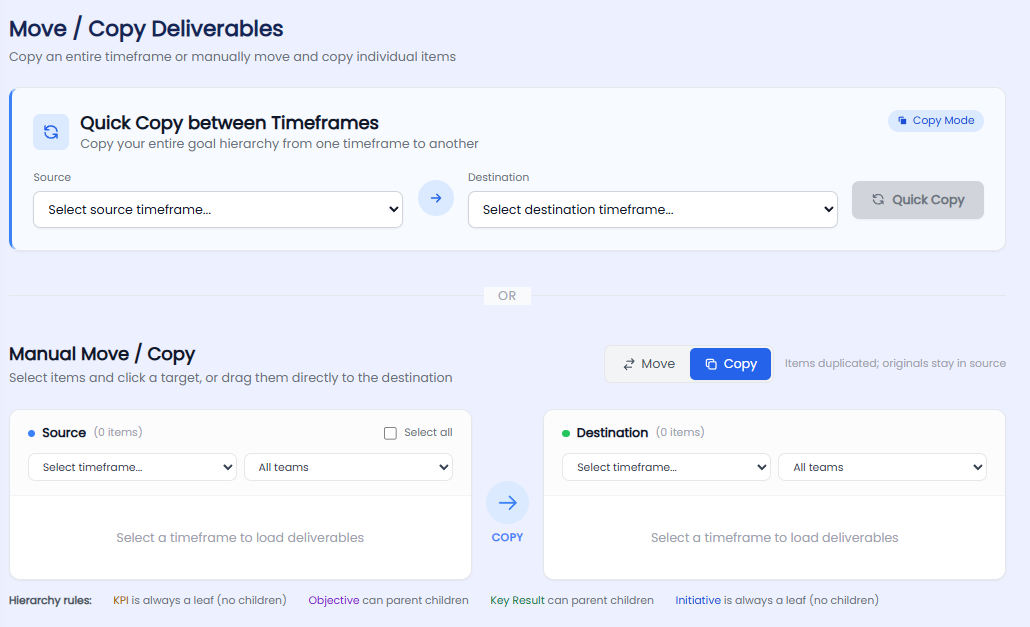
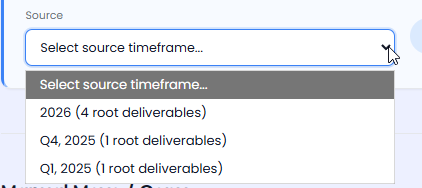
For the Quick Copy option, click on ‘Select source timeframe’ to select the quarter, year, or other timeframe and it we'll grab everything within that time frame.
Likewise select the destination time frame and then click Quick Copy. It will show you a preview of all the items from your source that are going to your destination timeframe.
Note: Three default settings are controlled by togglebuttons. You can turn these off if you want.
1. Reset progress to zero.
2. Preserve assignments.
3. Copy descriptions.
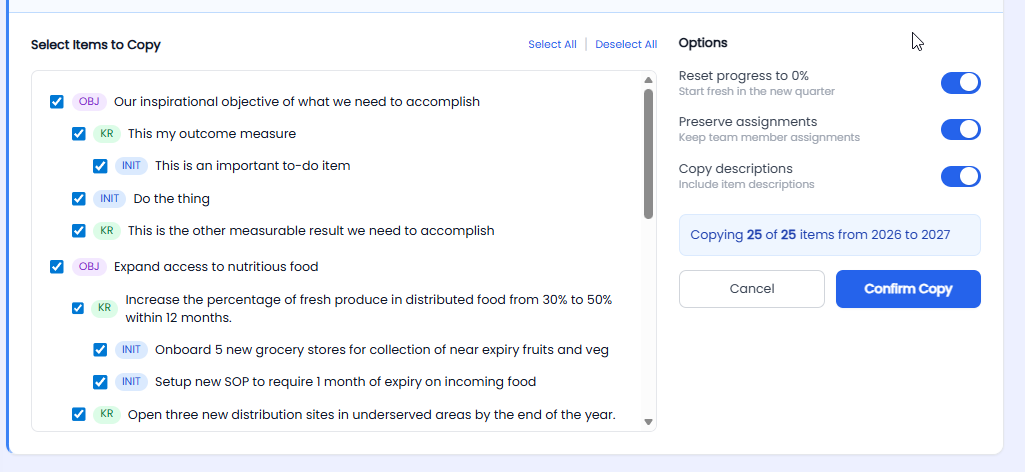
When you click ‘Confirm Copy’, it will copy everything over for you.
Or you can do it using the Manual method, which allows you to select and move or copy the individual objectives, key results, or initiatives.
Note: The difference between Move and Copy is that move will remove it from the original time frame and it will only exist in the destination time frame.

If you use Copy, it will still appear in both places. We recommend using the Copy option because if you use Move it will remove the items from the source year and you may lose progress or any other data that's been collected in the source year for that item.

To Move or Copy Manually:
First, choose the source and the destination time frame. You can also limit the choices by the team they’re assigned to by selecting the team from the drop down menu.
Then select the objectives, key results, or initiatives underneath it. Selecting a parent level item will automatically select the key results and/or the initiatives beneath it.
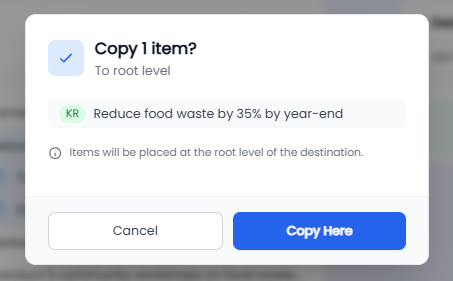
Then click on what you've selected and drag it to the right, into the green bar that says "Drop here to insert at root level"

It will ask you to confirm or cancel. To make the change, click “Copy here.”
If you're copying a key result over with no objective, it will automatically prompt you, using the Convert Type screen, to change it into an objective.
Here's a video to demonstrate the Move / Copy feature:
Closing
We trust you're as excited about this as we were because it saves time if you're reusing items between periods!