


Goal Management
Adding Team Plans and Team Specific Reporting
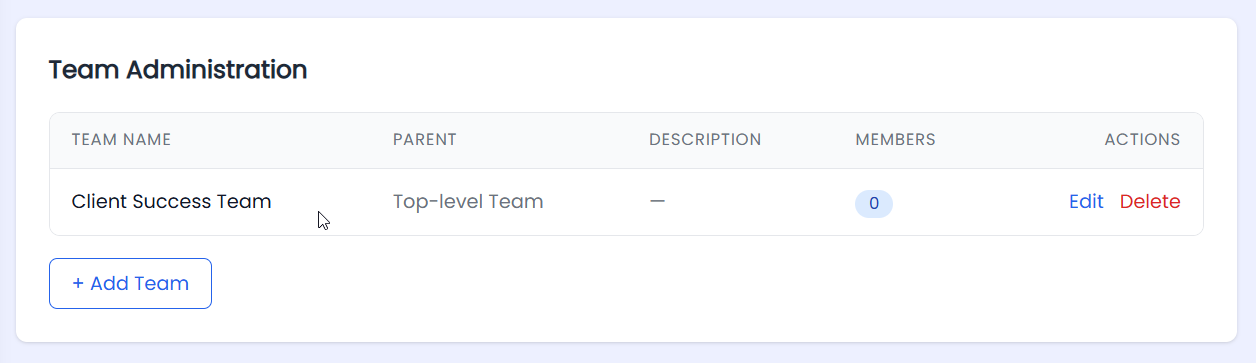
Learn how to create and manage teams within StratSimple, including how to add a new team, assign users, and navigate between the main company dashboard and individual team dashboards. Admin users can also configure team-specific monthly and quarterly reporting.
What's New
StratSimple now supports team-based dashboards, allowing admins to create named teams, assign users, and give each team its own dedicated dashboard view. Team leaders for reporting can be designated separately from company leaders, and both monthly and quarterly reports can be configured to deliver team-specific performance updates.
Why it Matters
Managing strategy across departments or groups is now more focused and efficient — team members can see what's relevant to them, reducing noise and keeping everyone aligned to their specific goals. Team-specific reporting can be set up, eliminating the need for manual check-ins and making accountability a built-in part of the process. If your organization uses teams to keep the strategic plan organized, StratSimple now supports an easy way to reflect this.
Step by Step Guide
Go to Org Settings, which is found in the menu under your profile pic (or initials). Admin user type is required for this.
Click on "Teams" in the menu on the lefthand side.
Click on the "Add Team" button.

Enter your team name (e.g., Client Success Team), description, and choose whether it is a Top Level or Child Team if you have multiple teams set up. Click Save.
Once the team is created, you can add users to the team. Go back to your Home Page, and select the "Users" option from the main menu on the left. Click "Edit" on each user to assign them to the new team, in the new Teams section of the Edit User screen.

To remove a user from a team, click the red X next to their team name, in the same section.
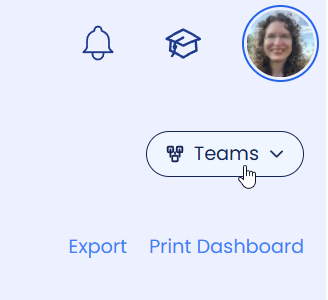
Once assigned, team members will see the Teams option in the top right corner of their dashboard. Team members can be assigned goals and can add, edit, and update goals from their team dashboard.
To set up team-specific reporting, go back to Org Settings and select Reporting Configuration.
Click on User Config and locate the Team Leaders section (separate from Company Leaders).

Click on the team name and select a leader for that group. Then, click on the Monthly Email tab and scroll down to find your team, and configure the email schedule for the team leader. Repeat the same process under Quarterly Report tab to configure that schedule for the team leader as well.
To view a team dashboard, team members can click the Teams button at the top right corner of the main dashboard and select the team name. To return to the main company dashboard, click on the company name from within the same Teams drop down menu.
Pro Tip: If you want to see the Team Specific Reporting on the main org reporting, the PowerPoints are editable so simply copy the team slides into the main report deck.
Here's a video demonstrating how to create and manage a team:
Closing Statement
Teams in StratSimple empower your organization to stay aligned at every level — from company-wide goals down to the individuals driving results every day. With team dashboards, goal assignments, and dedicated reporting, every leader has the clarity and focus they need to move their team forward with confidence.